Last week, I was working on my laptop, trying to get everything done on time. I found a hidden feature in Windows 11 that changed my workflow. It was like discovering a secret tool to make my work easier.
Windows 11 has many features that make using your computer better. I was excited to learn more about them. If you’re switching from Windows 10, you’ll find these tips very helpful.
Key Takeaways
- Windows 11 is packed with hidden features that can improve productivity.
- Discover how to create a GodMode folder for quick access to system settings.
- Learn to utilize the Scrolling Inactive Windows feature for efficient multitasking.
- Master keyboard shortcuts to manage windows more effectively.
- Unlock virtual desktops to enhance organizational skills while working.
Discovering Essential Windows Tips and Secret Tricks
Exploring Windows tips, I find many secret tricks that make my life easier. These features help me do things faster and more efficiently. One great example is the GodMode folder, which organizes system settings.
Creating a GodMode Folder for Quick Access
The GodMode folder is a hidden treasure in Windows. It lets me access over 200 common settings in one spot. To make it, I just create a new folder on my desktop and rename it to GodMode.{ED7BA470-8E54-465E-825C-99712043E01C}. This folder makes it easy to find settings, saving me time that I would spend searching in the Control Panel.
Utilizing the Scrolling Inactive Windows Feature
I also love the scrolling inactive windows feature. It lets me scroll through a window just by hovering my mouse over it without clicking. This tip helps me work better, even when I’m using many apps at once.
Mastering Keyboard Shortcuts for Window Management
For quick window management, I use keyboard shortcuts. Learning these commands helps me move around my desktop fast. I can switch between apps, snap windows, and more, all without taking my hands off the keyboard. These shortcuts make using my computer much easier.
Hidden Windows 11 Features That Enhance Your Workflow
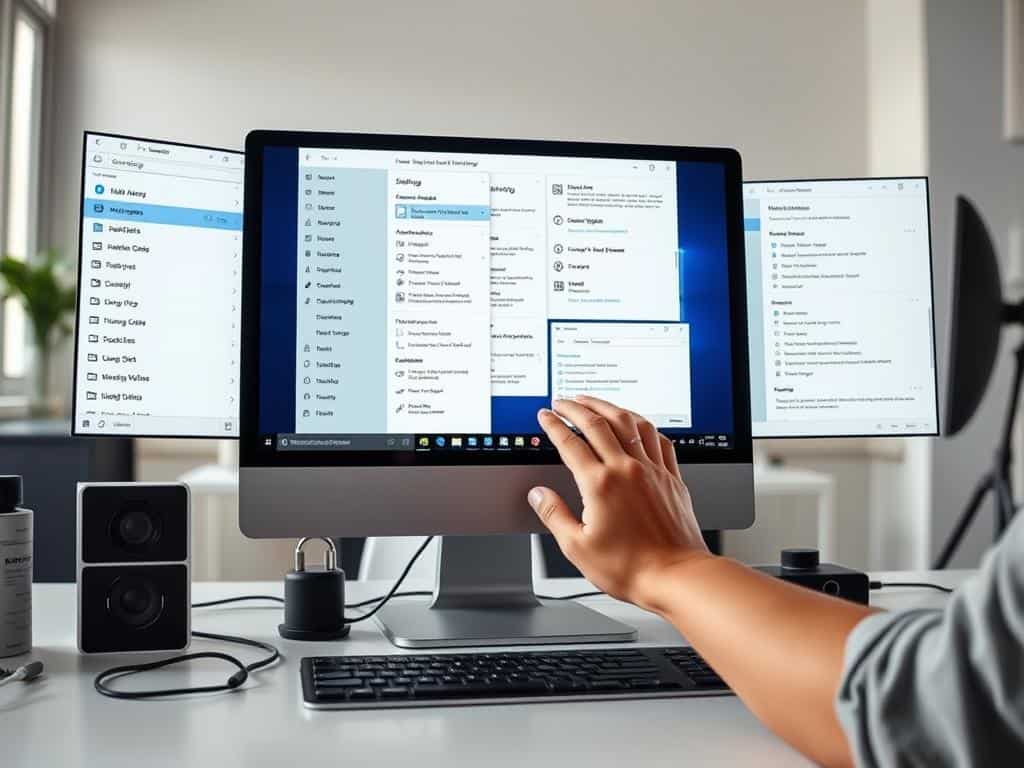
Windows 11 has features to make multitasking better. These tools help both casual users and professionals work more efficiently. You can find “Shake to minimize,” clipboard history, and virtual desktops among these features.
Shake to Minimize Windows
The Aero Shake feature is a big help for managing windows. By shaking the active window, you can close all others. To use it, go to Settings > System > Multitasking and turn on “Title bar window shake.”
With this feature, you can focus on one task at a time. It keeps your screen clean without the need to close every window manually.
Clipboard History: Never Lose Your Copied Items
Windows 11’s clipboard history keeps track of what you’ve copied. Pressing Windows key + V shows a list of recent copies. This feature makes sure you never lose important copied data.
It’s great for multitasking or moving data between apps. It helps you work more efficiently.
Virtual Desktops for Better Organization
Virtual desktops help organize your work better. You can create separate spaces for different projects. Switching between them is easy, keeping you focused on your tasks.
This is perfect for those with many tasks. It lets you customize your experience to fit your needs.
Conclusion
Discovering hidden Windows 11 features can greatly improve my daily computer use. Tools like GodMode give me access to over 200 system settings. This makes it easy to optimize my OS and streamline my work.
GodMode helps me quickly find important tools like Backup and Restore. It also makes it easy to manage my settings efficiently.
The scrolling inactive windows feature also boosts my multitasking. With just a hover, I can scroll through apps without switching. This increases my productivity and keeps me focused on my main tasks.
Using virtual desktops has also changed how I organize my work. I can set up different environments for different projects. This keeps my work organized and clutter-free.
I highly recommend exploring these hidden features in Windows 11. Adding them to my daily routine has made my workflow much more efficient.