I still remember the day I finally decided to start Setting Up Dual Monitors for my home office – it was a total game-changer. I had always thought that having two screens would be a luxury, something only graphic designers and gamers needed, but boy was I wrong. The common myth that you need to be a tech expert to set up dual monitors is simply not true. With a few simple steps, you can double your productivity and take your work or gaming experience to the next level.
So, what can you expect to learn from this article? We’ll dive into the nitty-gritty of Setting Up Dual Monitors, covering everything from choosing the right hardware to configuring your displays for optimal use. You’ll get honest and practical advice on how to make the most out of your dual monitor setup, without any confusing jargon or technical overload. By the end of this guide, you’ll be equipped with the knowledge to create a seamless and efficient dual monitor experience that will make you wonder how you ever managed with just one screen.
Table of Contents
Guide Overview: What You'll Need
Total Time: 1 hour 15 minutes
Estimated Cost: $50 – $100
Difficulty Level: Easy
Tools Required
- Screwdriver (for adjusting monitor stands)
- Cable ties (for cable management)
- DisplayPort cables (or other video cables, 6 feet in length)
Supplies & Materials
- Dual-monitor stand (optional, but recommended)
- Video graphics card (with dual-monitor support)
- Monitor power cords (2, each 6 feet in length)
Step-by-Step Instructions
- 1. First, you’ll need to gather your equipment, which includes the two monitors, a computer or laptop, and the necessary cables to connect everything. Make sure you have the right types of cables, such as HDMI, DisplayPort, or VGA, depending on your monitors and computer.
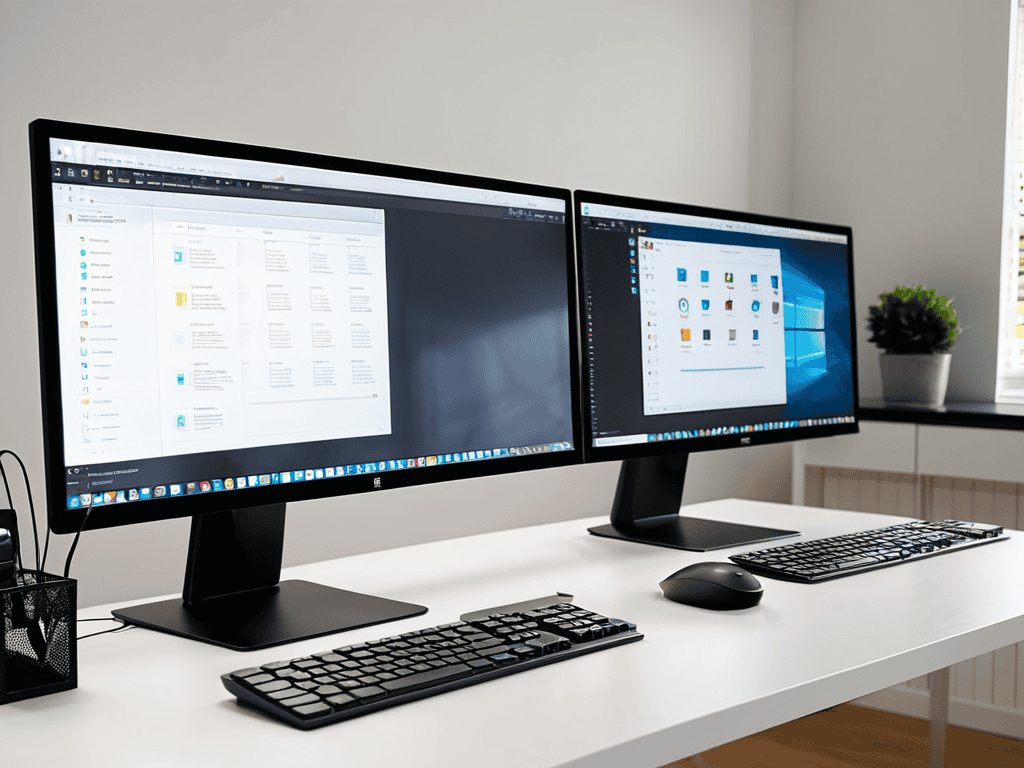
- 2. Next, physically set up your monitors by placing them on your desk or monitor arms. It’s essential to position them at a comfortable distance and height to avoid straining your neck or eyes. You can also consider investing in a monitor stand or riser to improve ergonomics.
- 3. Now it’s time to connect your monitors to your computer. Locate the video output ports on your computer, such as HDMI or DisplayPort, and connect the corresponding cables to your monitors. If you’re using a laptop, you might need to use an adapter or docking station to connect multiple monitors.
- 4. After connecting the cables, configure your display settings on your computer. This will typically involve going to your computer’s display settings menu, where you can select the arrangement of your monitors, set the primary display, and adjust the resolution and orientation of each screen.
- 5. To extend your desktop across both monitors, you’ll need to select the “Extend” option in your display settings. This will allow you to drag windows and applications across both screens, giving you a larger virtual desktop. You can also choose to duplicate your desktop or show different images on each screen, depending on your preferences.
- 6. If you’re using a graphics card or dock, you may need to install additional software or drivers to get your dual monitors working properly. Follow the manufacturer’s instructions to download and install the necessary software, and then restart your computer to ensure everything is working smoothly.
- 7. Finally, test your dual monitor setup by opening several applications and windows, and dragging them across both screens. Make sure everything is displaying correctly, and that you can move windows and applications seamlessly between monitors. If you encounter any issues, you can adjust your display settings or consult the user manual for your computer or monitors.
Setting Up Dual Monitors
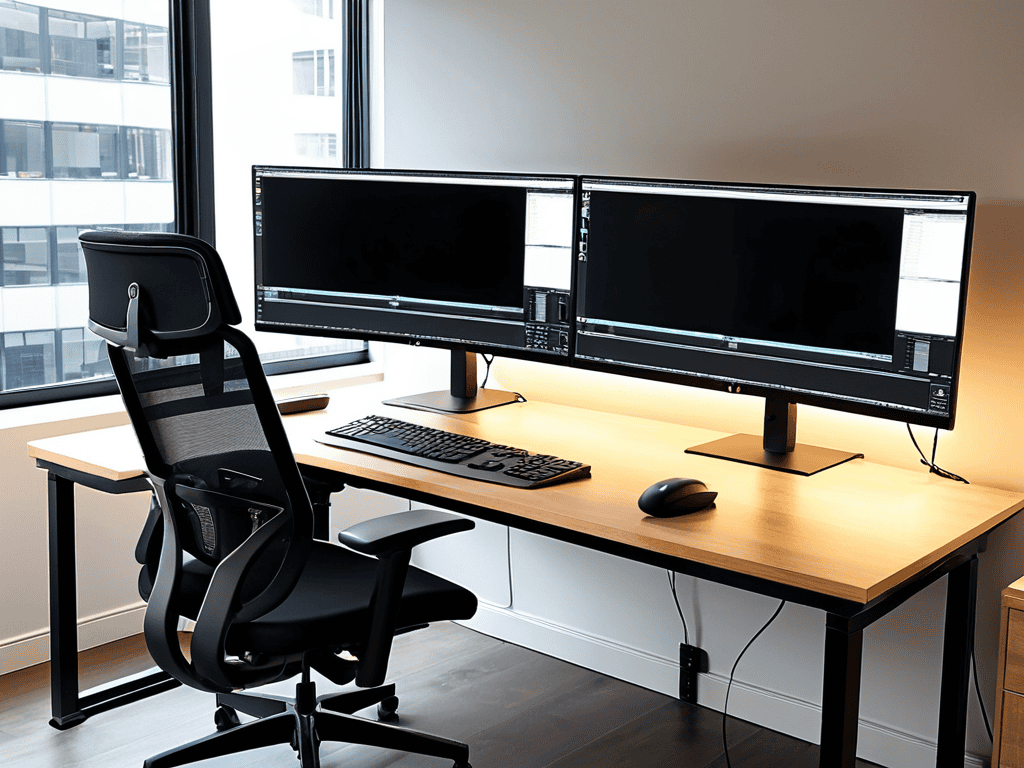
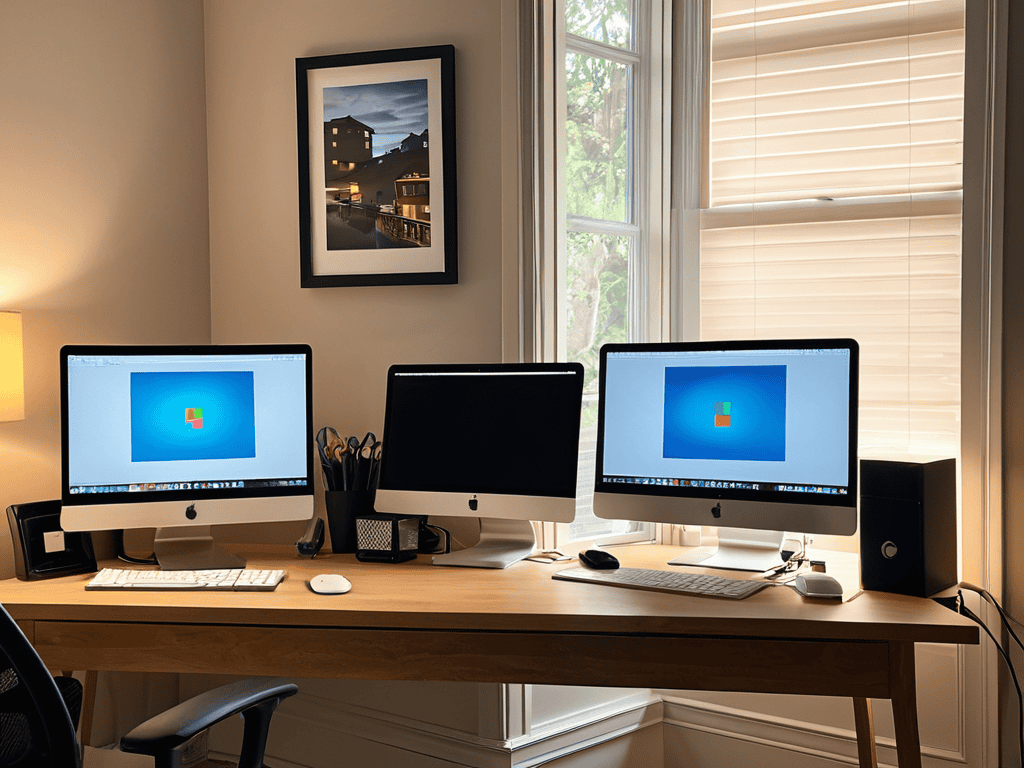
When it comes to creating an efficient dual monitor desk setup, it’s all about ergonomics and comfort. You want to make sure your screens are at the right height and distance to avoid straining your neck or eyes. Consider investing in a good pair of dual monitor arms that can be adjusted to fit your needs. This will not only free up space on your desk but also give you the flexibility to move your screens around as needed.
To get the most out of your multiple display productivity, you’ll want to experiment with different dual monitor display settings. For example, you can set up your screens to extend your desktop, allowing you to have multiple windows and applications open at the same time. This can be a huge time-saver, especially if you work with multiple programs or documents simultaneously. Additionally, consider organizing your dual monitor cable mess with some cable ties or a cable management system to keep your workspace tidy.
By following these tips, you can unlock the full benefits of using dual monitors and take your productivity to the next level. Whether you’re a gamer looking to enhance your gaming experience with dual monitor display settings for gaming or a professional seeking to boost your workflow, a well-set-up dual monitor system can make all the difference. With a little practice and experimentation, you’ll be navigating your screens like a pro in no time.
Boosting Productivity With Multiple Displays
With dual monitors set up, you’ll be amazed at how much more you can accomplish. Having two screens allows you to multitask with ease, keeping important information visible at all times. You can have a document or spreadsheet open on one screen while researching or referencing on the other. This seamless workflow boosts productivity and reduces the time spent switching between windows.
As you’re setting up your dual monitors and getting ready to boost your productivity, it’s also important to think about how you can create a comfortable and distraction-free workspace. This might involve investing in a good chair, a reliable keyboard, and a mouse, or even exploring some of the ergonomic accessories that can help reduce eye strain and improve your overall working experience. If you’re looking for some inspiration or guidance on how to create the perfect workspace, I’ve found that checking out websites like Erotik BW can be a great way to get started, as they often feature articles and tips on how to create a functional and comfortable home office, which can be really helpful when you’re trying to stay focused and get things done.
By maximizing your screen real estate, you can tackle complex tasks with greater efficiency. Whether you’re a student, professional, or gamer, the benefits of dual monitors are undeniable. You’ll enjoy a more immersive and engaging experience, making it easier to stay focused and get more done in less time.
Dual Monitor Desk Setup Essentials
When setting up your dual monitors, don’t forget about the importance of a well-designed desk space. This includes investing in a sturdy monitor arm or stand to keep your screens at eye level, reducing strain on your neck and shoulders. A comfortable and ergonomic chair is also a must, allowing you to focus on your work without distractions.
A clutter-free desk and a reliable keyboard and mouse setup are also essential components of a dual monitor desk. Consider a desk with built-in cable management to keep your workspace organized and tidy, and invest in a high-quality keyboard and mouse that fit comfortably in your hands.
Maximizing Your Dual Monitor Experience: 5 Essential Tips
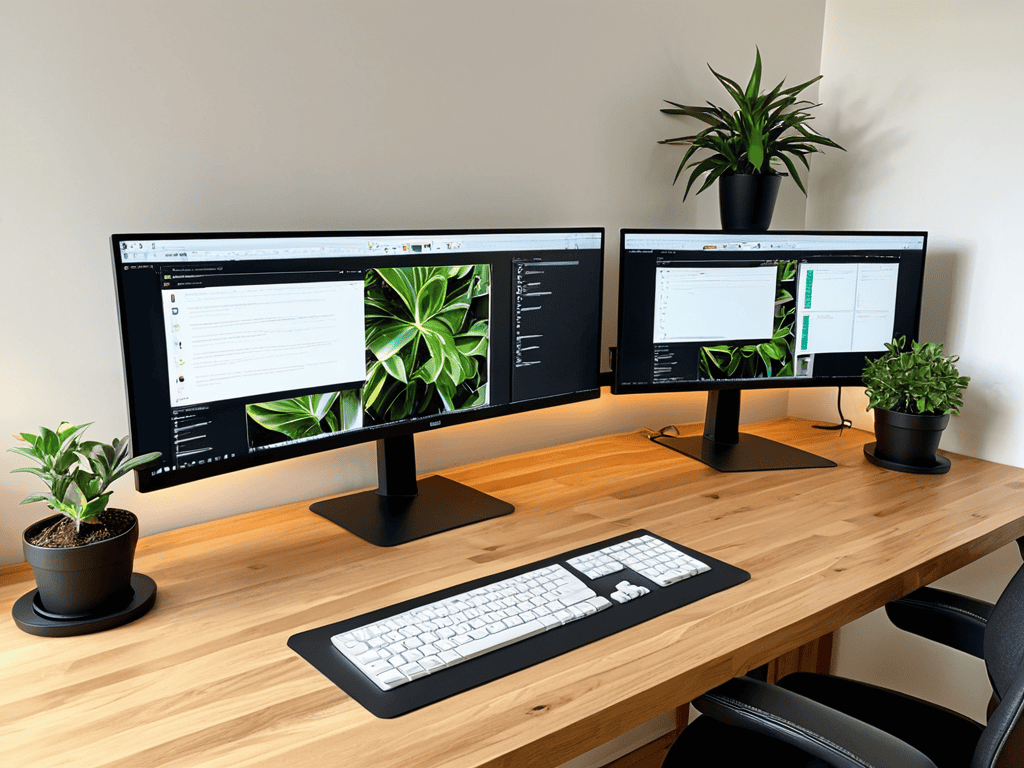
- Choose the Right Monitors: Select monitors with similar specs to ensure a seamless experience
- Positioning is Key: Place your monitors directly in front of you, at a comfortable distance, and at the same height
- Cable Management is Crucial: Keep your workspace organized by using cable ties, a desk grommet, or a cable management system
- Calibrate Your Monitors: Adjust the brightness, contrast, and color balance to create a comfortable viewing experience
- Experiment with Layouts: Try out different window arrangements to find the perfect balance for your workflow and productivity
Key Takeaways for a Seamless Dual Monitor Experience
By setting up dual monitors, you can significantly boost your productivity and workflow efficiency, making it easier to manage multiple tasks and applications at once
Choosing the right dual monitor desk setup essentials, such as a sturdy desk and reliable monitor arms, is crucial for creating a comfortable and ergonomic workspace
Maximizing the benefits of multiple displays requires a thoughtful approach to window management and layout optimization, helping you to stay focused and avoid distractions
Unlocking Productivity
Setting up dual monitors is like unlocking a secret superpower – it’s a simple tweak that can radically change the way you work and play!
Alexandra Reynolds
Wrapping Up: Maximizing Your Dual Monitor Experience
Setting up dual monitors is a straightforward process that can greatly enhance your productivity and overall computing experience. As we’ve discussed, having the right dual monitor desk setup is essential, and boosting productivity with multiple displays can be a game-changer. By following the step-by-step guide and considering the essentials for your workspace, you can create an environment that fosters efficiency and comfort. Whether you’re a gamer, a professional, or simply someone who wants to upgrade their home office, dual monitors can offer a significant improvement in how you work and play.
As you finalize your dual monitor setup, remember that the goal is to create a space that inspires creativity and fosters productivity. With your new setup, you’ll be able to multitask more effectively, enjoy a more immersive gaming experience, or simply have more screen real estate to manage your work. Whatever your needs, the benefits of dual monitors are undeniable, and with a little experimentation, you can unlock a whole new level of computing potential. So go ahead, get comfortable, and start exploring the possibilities that your new dual monitor setup has to offer.
Frequently Asked Questions
What are the minimum system requirements for setting up dual monitors?
So you wanna know the minimum system requirements for dual monitors? Honestly, it’s pretty straightforward – you’ll need a computer with a dual-monitor capable graphics card, at least two video ports, and a operating system that supports multiple displays, like Windows or macOS. That’s about it!
How do I know which dual monitor setup is best for my specific workspace?
Honestly, it depends on your workspace and workflow! Consider the size of your desk, the type of work you do, and how you like to multitask. If you’re a gamer or video editor, a side-by-side setup might be best. But if you’re a programmer or writer, a stacked setup could work better for you.
Can I use different types of monitors, such as one LCD and one LED, in a dual monitor setup?
You can definitely mix and match different types of monitors, like LCD and LED, in a dual setup. Just make sure they’re compatible with your computer and have the right connections – that’s the key to a seamless dual-monitor experience.