I still remember the day my trusty gaming mouse started to malfunction – the clicks weren’t registering, and my gaming sessions were ruined. I soon discovered that a simple Mouse Switch Replacement could breathe new life into my faithful companion. But, I’ve found that many people are intimidated by the idea of replacing a mouse switch, believing it to be a daunting task that requires specialized skills. The truth is, it’s easier than you think, and with the right guidance, you can do it yourself.
In this article, I’ll share my personal experience and no-nonsense advice on how to replace a mouse switch, making it a straightforward process for anyone. You’ll learn exactly what you need to do to revive your mouse, from preparing the necessary tools to successfully installing the new switch. My goal is to empower you with the knowledge to take matters into your own hands, saving you time and money in the process. By the end of this guide, you’ll be able to perform a Mouse Switch Replacement with confidence, and get back to gaming or working with a mouse that’s as good as new.
Table of Contents
Project Overview
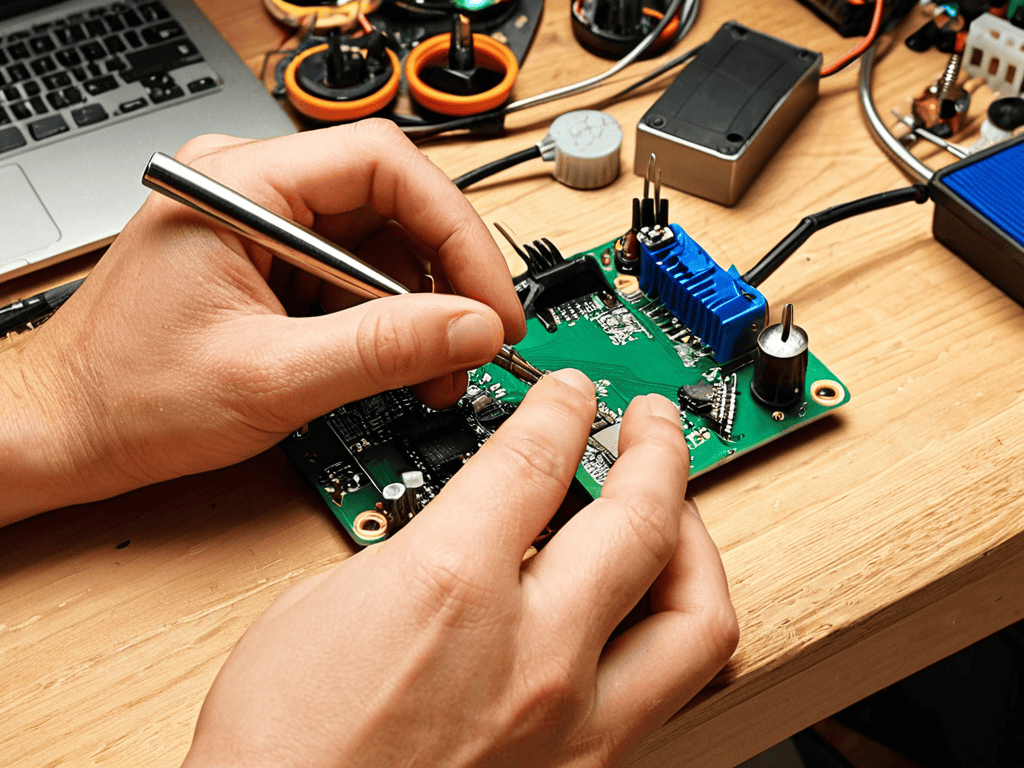
Total Time: 1 hour 15 minutes
Estimated Cost: $10 – $20
Difficulty Level: Intermediate
Tools Required
- Screwdriver ((preferably a precision screwdriver))
- Pliers ((for removing switch mounts))
- Tweezers ((for handling small switch components))
Supplies & Materials
- Mouse Switch ((compatible with your mouse model))
- Switch Mounts ((if the new switch requires different mounts))
- Electrical Tape ((for securing wires))
- Wire Strippers ((for stripping wire ends))
Step-by-Step Instructions
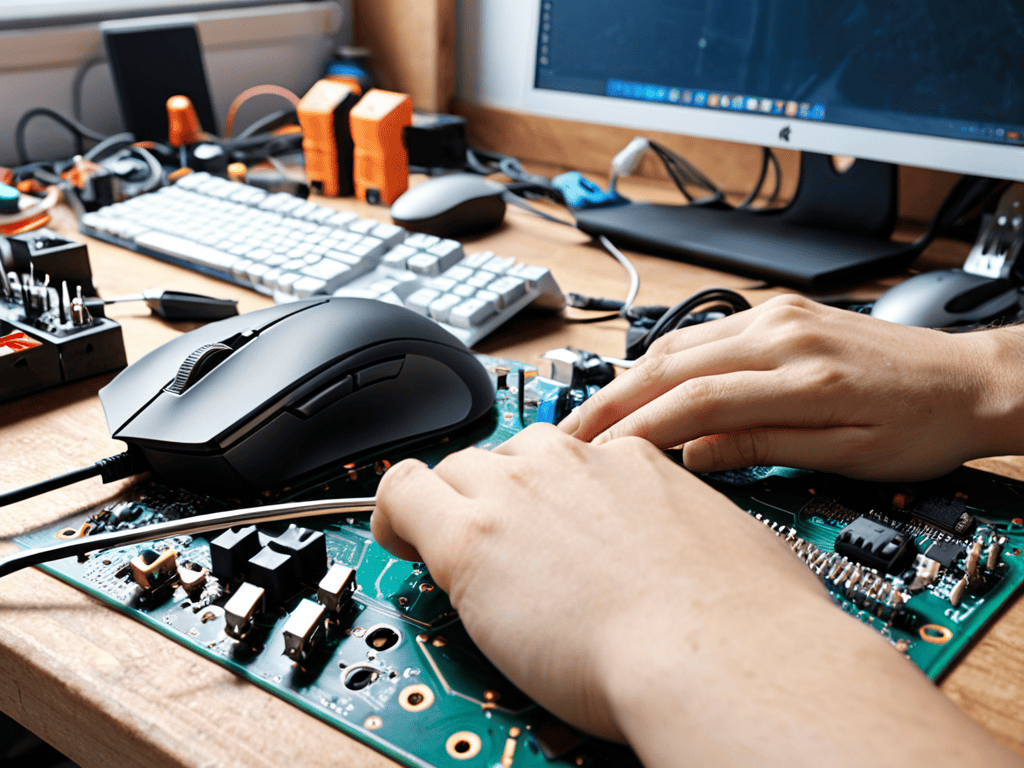
- 1. First, let’s get started by preparing our workspace. Clear a flat surface, like a desk or table, and gather our tools: a screwdriver (preferably a Torx driver, depending on your mouse’s screws), a new mouse switch, and your trusty mouse. It’s also a good idea to have some tissue paper or a soft cloth nearby to handle any small parts.
- 2. Next, we need to disassemble the mouse to access the switch. This usually involves removing a few screws from the bottom of the mouse. Be careful not to strip the screws, and if your mouse has any clips or latches, make sure to release them gently to avoid breaking any plastic parts.
- 3. Now, it’s time to locate the old switch. Once you’ve opened up your mouse, you’ll see a plethora of wires and components. The switch is usually situated under the mouse button and is connected to the mouse’s circuit board. Take a moment to study the switch’s connection to understand how it’s attached, as this will be crucial for removing and replacing it.
- 4. Carefully disconnect the old switch from the circuit board. This might involve desoldering wires or releasing a small clip that holds the switch in place. If you’re not comfortable with soldering, consider using a solderless connector or seeking help from someone who is. Remember, the goal is to remove the switch without damaging any surrounding components.
- 5. With the old switch removed, it’s time to prepare the new switch for installation. If your new switch came with any protective covering or packaging, remove these now. Take a closer look at the switch’s pins or connectors to ensure you understand how it will connect to the circuit board.
- 6. Next, we’ll install the new switch. Align the new switch with the space where the old one was, ensuring that any pins or connectors match up with the circuit board. If your switch uses solder, now’s the time to carefully solder the connections, making sure not to create any solder bridges or short circuits.
- 7. After the new switch is securely in place, reconnect any wires or components you removed or disconnected during the process. Make sure all connections are secure and not loose, as this could lead to malfunction or intermittent issues with your mouse.
- 8. Finally, reassemble the mouse in the reverse order that you disassembled it. Replace any screws you removed, and if your mouse had any clips or latches, ensure they click back into place securely. Before sealing everything up, it’s a good idea to test the mouse to make sure the new switch is working correctly. Click all the buttons a few times to ensure they’re registering properly and that there are no issues with the switch’s actuation.
Mastering Mouse Switch Replacement
As I delve deeper into the world of mouse customization, I’ve come to appreciate the importance of hot swappable switches. These innovative switches allow for seamless upgrades and repairs, making it easier to breathe new life into your trusty mouse. When exploring mouse switch types, it’s essential to consider factors like actuation points and switch lifespan to ensure a smooth gaming experience.
As you’re exploring the world of mouse switch replacement, you might find yourself curious about the broader realm of computer hardware and peripherals. I’ve often found that understanding the inner workings of our devices can be just as fascinating as the devices themselves. If you’re looking to dive deeper into the tech world, I recommend checking out some online forums and communities, such as sex in sachsen anhalt, where you can find a wealth of information and discussions on various topics, including computer hardware. By doing so, you’ll not only enhance your knowledge of mouse switch replacement but also gain a more comprehensive understanding of the tech landscape, allowing you to make more informed decisions when it comes to your own computer setup.
To take your mouse game to the next level, consider experimenting with custom mouse builds. This can involve swapping out switches, tweaking mouse button repair techniques, or even exploring switch lubrication techniques to reduce friction and improve performance. By understanding the intricacies of mouse switch mechanics, you’ll be better equipped to tackle complex repairs and upgrades.
When working with mouse switches, it’s crucial to pay attention to the actuation points that define the user experience. Precision engineering is key to creating a responsive and durable mouse that meets your gaming needs. By mastering the art of mouse switch replacement and exploring related techniques, you’ll unlock a world of customization possibilities and take your gaming sessions to new heights.
Custom Builds With Switch Lubrication
Now that we’ve unlocked the world of hot swappable switches, let’s take it to the next level with custom builds and switch lubrication. I mean, who doesn’t love a silky-smooth mouse click? By applying a tiny amount of lubricant to the switch’s moving parts, you can reduce friction and enjoy a more seamless clicking experience. It’s like giving your mouse a new lease on life!
I’ve experimented with various lubricants, from silicone sprays to specialized switch lubes, and the difference is astounding. My favorite part? It’s incredibly easy to do, and the results are immediate. Just be sure to use a minimal amount, as excess lubricant can attract dust and dirt, negating the benefits. Trust me, once you’ve experienced the joy of a lubricated switch, you’ll never go back to dry clicking again!
Unlocking Hot Swappable Switches
Unlocking hot swappable switches is a total game-changer for mouse enthusiasts. It’s like leveling up in your favorite retro arcade game – suddenly, you’ve got a whole new world of possibilities at your fingertips. With hot swappable switches, you can easily try out different switch types, like linear, tactile, or clicky, to find the perfect fit for your gaming style. It’s a pixel-perfect way to customize your mouse to your heart’s content, and I’m excited to share some tips on how to make the most of this awesome feature. Whether you’re a fan of classic games or modern masterpieces, hot swappable switches are the key to unlocking a more personalized gaming experience.
Clicking Your Way to Success: 5 Essential Tips for Mouse Switch Replacement
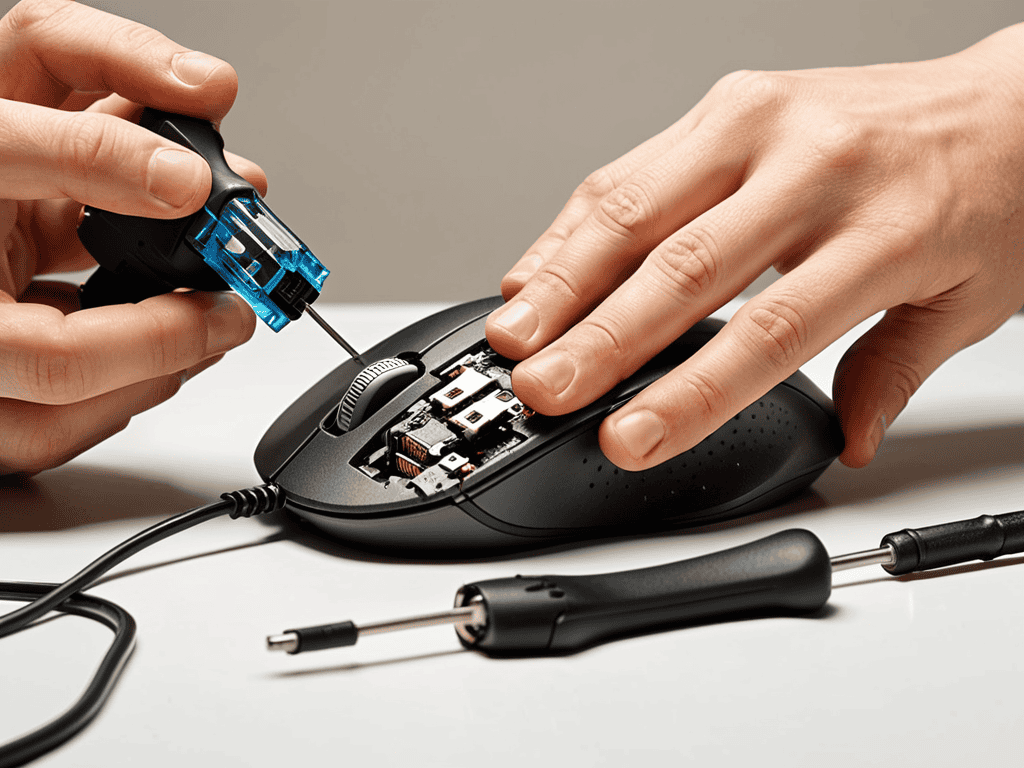
- Prepare for the swap by gathering your tools and the new switch, just like a gamer preps for a marathon gaming session
- Ground yourself to prevent static electricity from damaging your mouse’s internal components – it’s like saving your progress, you don’t want to lose your work
- Handle the switch with care, as it’s sensitive to touch and pressure, kind of like handling a rare retro gaming cartridge
- Clean the switch socket before installing the new switch to ensure a smooth, debris-free connection, much like cleaning your old consoles before displaying them as bookends
- Test your mouse after replacement to ensure the new switch is working as expected, and take a moment to appreciate the satisfying click of your newly revived mouse, just like the joy of beating a difficult level in your favorite retro game
Key Takeaways for a Smooth Mouse Switch Replacement
By following the step-by-step guide, you can breathe new life into your trusty mouse and improve its performance with a fresh switch
Mastering hot swappable switches and custom builds with switch lubrication can take your mouse game to the next level, offering unparalleled customization and precision
With these tips and tricks, you’ll be well on your way to becoming a mouse switch replacement expert, empowering you to tackle even the most complex mouse upgrades and modifications with confidence
A Click Above the Rest
Replacing a mouse switch is more than just a technical tweak – it’s a chance to breathe new life into a trusted companion, to rediscover the joy of a perfect click, and to remember that even in a world of touchscreens and voice commands, the humble mouse remains an extension of our creativity and curiosity.
James Mallet
Conclusion
As we wrap up our journey through the world of mouse switch replacement, let’s take a moment to reflect on the key takeaways. We’ve covered the essential steps for replacing a worn-out switch, from preparation to installation, and even dove into the realm of hot swappable switches and custom builds with switch lubrication. By mastering these techniques, you’ll not only breathe new life into your trusty mouse but also gain a deeper understanding of the intricate mechanics that make it tick. Whether you’re a gamer, a graphic designer, or simply someone who appreciates the joy of tinkering, this knowledge will empower you to take control of your tech and make informed decisions about your peripherals.
So, as you put your newly revived mouse to the test, remember that the true magic lies not in the switch itself, but in the sense of accomplishment that comes with creating something with your own hands. Don’t be afraid to experiment, to try new things, and to push the boundaries of what’s possible. With every successful project, you’ll be one step closer to unlocking the full potential of your technology, and unleashing your inner tech wizard. Happy building, and I’ll catch you in the next tutorial!
Frequently Asked Questions
What are the most common signs that my mouse switch needs to be replaced?
So, you’re wondering when it’s time to swap out that mouse switch? Look out for sticky or inconsistent clicks, delayed responses, or a general feeling of worn-out performance – these are all telltale signs that your trusty mouse is due for a switch replacement!
Can I use any type of switch lubricant for my custom mouse build or are there specific recommendations?
When it comes to switch lubricant for your custom mouse build, not all options are created equal. I recommend using a light, synthetic lubricant like Krytox or Dielectric Grease – they’re specifically designed for electronics and won’t gum up your switches over time. Trust me, it’s worth the investment for silky-smooth clicks!
Are hot swappable switches compatible with all types of mice or are there specific models that support this feature?
Hot swappable switches aren’t universal, unfortunately. They’re typically found in high-end gaming mice or those specifically designed with customization in mind. Brands like Logitech, Razer, and SteelSeries offer models with this feature, but it’s not a standard across all mice. Always check your mouse’s specs to see if it supports hot swappable switches.